 Millworker
Help / Treatment
 Waste Envelope
Part
A sized oversize box round each body for rough stock, shown in yellow and listed on the cut list.
Set up
- A part with solid-wood or rough-stock bodies that need cutting oversize before machining.
- Click Waste Envelope. Every body that has one shows its yellow see-through box.
- Click a body to give it one (the oversize from Millworker Settings on each end and side), or click again to take it off the display.
- Ends, Sides and Faces set both sides of every shown envelope; drag a side of a yellow box to size that side alone (to 1/32″).
- Apply or OK keeps them; Clear takes them off the shown bodies.
Screenshot placeholder
images/waste-envelope.png
1600 × 900 px
Three face-frame members each with a yellow see-through envelope, one side being dragged; Ends/Sides/Faces values in the toolbar.
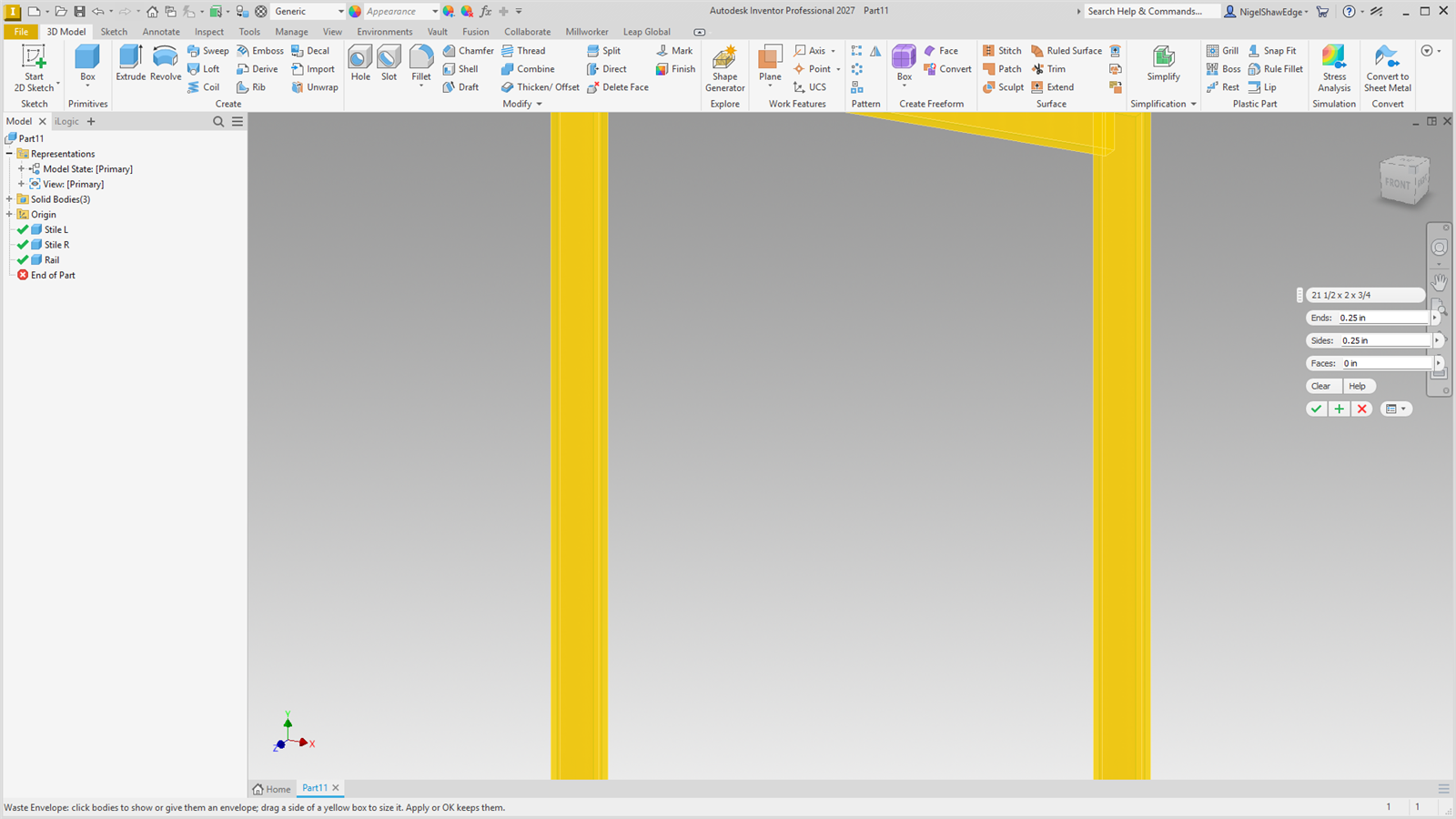
The envelope does not change the body; it is kept with it (L1, L2, W1, W2, T1, T2 oversizes and the envelope's length, width and thickness). The cut list and reports have Envelope L, Envelope W and Envelope T fields to add as columns.