 Millworker
 Cabinet Marker
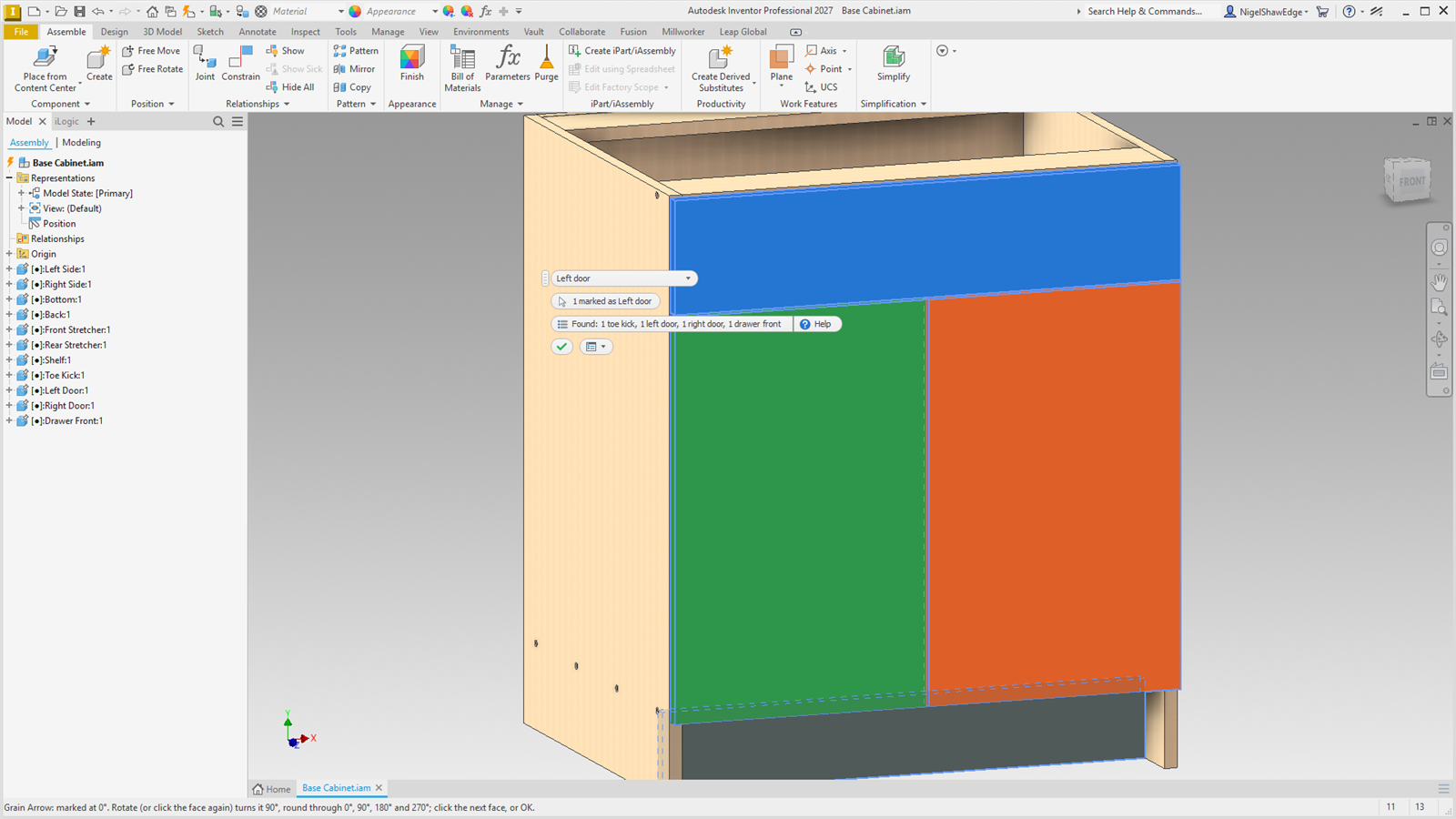
Mark parts as Left door, Right door, Drawer front, Toe kick and the rest; each type lights up in its own colour.
- An assembly: Panel Marking panel → Cabinet Marker.
- When it starts, it marks the parts it can tell the type of by itself (only parts not marked yet), and the toolbar's Found line says what: doors from their hinge cups (cups on the left as seen from the door's front make a Left door; on the right, a Right door; at the top, a Lift-up door; at the bottom, a Drop-down door), drawer fronts (a panel facing the front with no hinge cups, nothing in front of it and the cabinet behind it), and toe kicks (the same, at the very bottom and no more than 200 mm high). Ctrl+Z takes all of these off in one step. A part whose mark you take off by hand isn't typed again.
- Every marked part lights up filled in its type's colour, so it shows in a busy model.
- Choose a type in the toolbar (Left door, Right door, Lift-up door, Drop-down door, Drawer front, Drawer box, False front, Toe kick, End panel, Shelf, Fixed panel, or your own).
- Click parts to mark them as that type. Click a part already marked as it to take the mark off; click one marked as another type to change it.
- OK (or Esc) finishes. Save the assembly to keep the marks.
The mark is kept on the part's place in the assembly, not on the part file, so one door part can be a left door in one cabinet and a right door in another. A part inside a sub-assembly is marked in that sub-assembly (it must be writable), so the cabinet's marks go with it into every assembly and drawing it's used in.
Which way is the front: the assembly's Front view (as its ViewCube has it) decides left and right, so a cabinet modelled facing another way still comes out right. Check the found types the first time on a new kind of model: a drawer front is only a guess from where the panel sits, and a false front sits just like one.
Types and colours are in Millworker Settings, Cabinet marks tab: add, rename or remove types, double-click a colour to change it, and choose each type's opening lines for drawings (left, right, up, down or none). Show Mark Types draws them.