Millworker
Editing a Millworker node
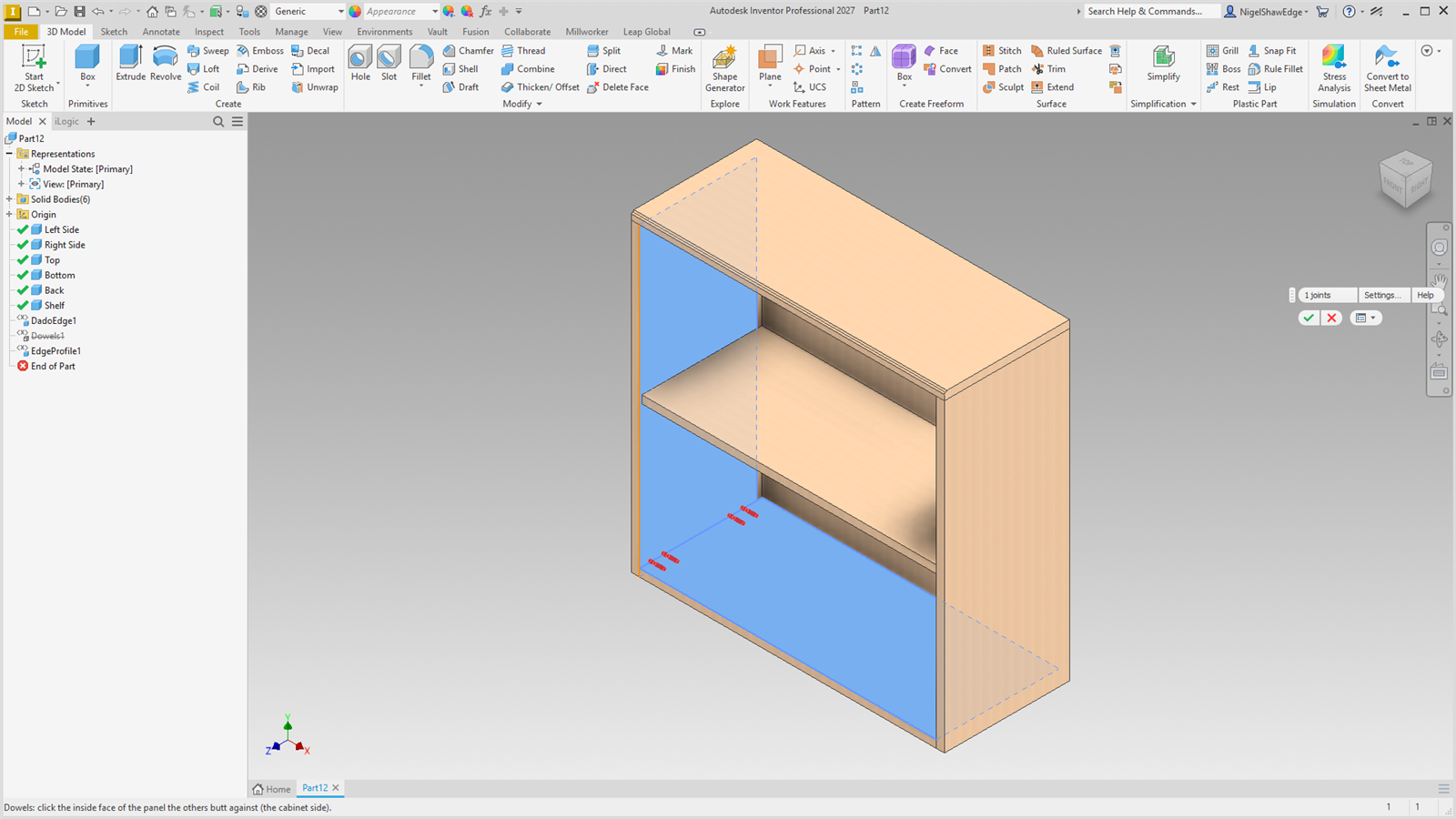
Double-click a node to open its tool again with its picks and values, change them, and remake it in place.
- A part with a Millworker node in the model browser.
Double-click a Millworker node, or right-click it and choose Edit Millworker Feature.
Tools that open again
Dowels, Cam Dowels, Confirmat (and Hardware Hole nodes made before), Place Hole, Face Bore (nodes made before), Domino, Biscuit, Clamex P, Pocket Screws, LED Channel, Tongue, Groove, Shaker Door, Corner Quirk, Tongue & Groove, Dado Join, Dado Edge, Edge Inset, Miter Join, Stop Shoulder, CAM Corners, Lattice, Sunburst, Halving, Copy Body and Edge Profile open their tool again:
- The node is suppressed, so the part is as it was before it was made.
- Its picks are found again and lit, and its values come back (a value you changed since in Parameters shows as it is now), with the tool's own choices: fastener size, Rotate 90°, quirk style, Halving's direction, Edge Profile's profile and Flip, Copy Body's direction, edge or path, Rotate, Fill and number of copies.
- Change values, add picks or take picks back. The preview follows every change; Settings… changes (such as how many Confirmats per joint) show at once.
- OK makes it again with the picks as they are now, in its place in the browser with the same name, as one undo step. You can pick faces and bodies made after the node; the node then moves below them. Cancel puts it back as it was.
Tools that edit their parameters
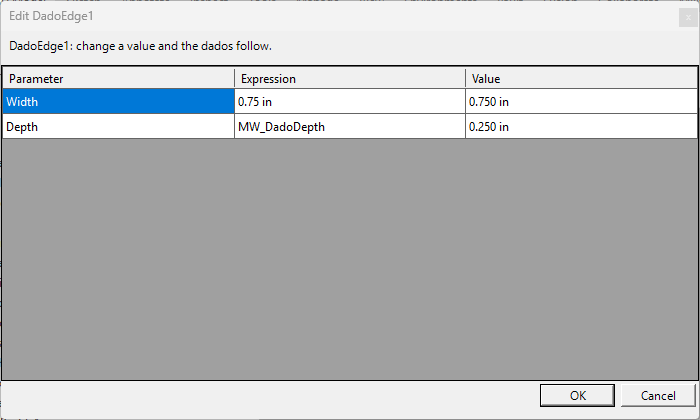
Panel Maker lists its own parameters to change, as do nodes made before their tool could open again (Copy Body, Halving and Edge Profile nodes made before this version: delete and make them again to get the full edit). Hinge Holes and Shelf Holes open their popup with the current sizes and an Update button.