 Millworker
Help / Tools
 Parameters side bar
Part
Assembly
The active document's parameters at a glance in a docked window, with a copy button for each name.
Where
- Tools panel → Parameters. A dockable window, docked right at first. It stays open and follows the active document.
Screenshot placeholder
images/parameters-sidebar.png
400 × 800 px
Parameters side bar docked right over a part: Find box at the top, Millworker group unfolded, Name / Value / copy button columns.
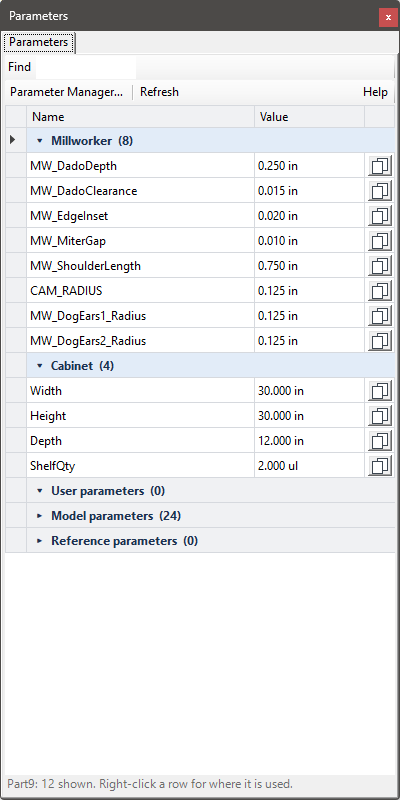
- Name, Value and a copy button that copies the name, to type into a model or a value box.
- Grouped as in the Parameter Manager, with Find at the top.
- Double-click a parameter, right-click → Open in the Parameter Manager, or Parameter Manager… at the top for everything else.
iProperties tab
In assemblies there is an iProperties tab beside Parameters. It shows the iProperties of what is selected: nothing selected, the assembly; a subassembly, that subassembly; a part (or a face or edge of it), that part.
Screenshot placeholder
images/iproperties-tab.png
400 × 800 px
Assembly with a part picked; side bar on the iProperties tab: Summary, Project and Custom groups, the icon buttons at the top, the last Custom row for adding a property.
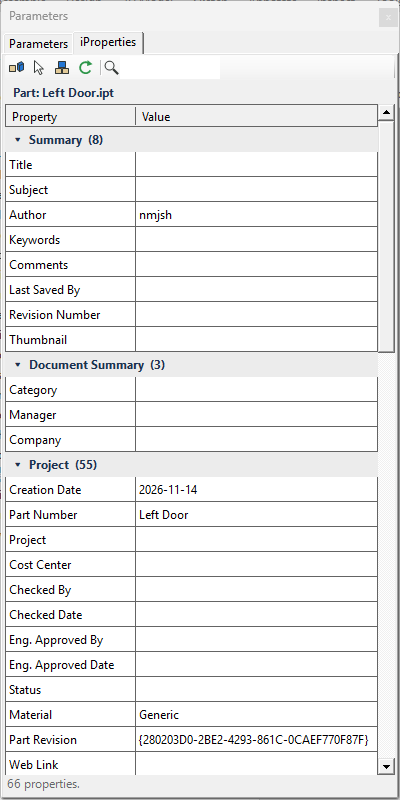
- Every category has its own group (click to fold): Summary, Document Summary, Project, Custom and others.
- Type a value and it goes on that document at once, as one undo step, in the property's own kind (date, number, Yes/No, text). A value that does not fit is refused, with why on the status line.
- The last row of Custom adds a custom iProperty (name, then Tab to its value).
- Buttons: Part priority, Pick a part (one click, inside subassemblies too), Top assembly, Refresh and Find.
Save the assembly to keep the changes in the files.