 Millworker
Help / Drawings
 Show and Clear Mark Types
Drawing
Doors' and drawers' opening lines and hinge holes, drawn from the parts marked with Cabinet Marker.
Where
- A drawing of an assembly whose parts are marked with Cabinet Marker.
- Mark Types panel → Show Mark Types or Clear Mark Types.
- Show Mark Types: click a view. Each marked door gets dashed lines from its far corners to the middle of its hinge side; drawer fronts get them pointing down. The hinge cups and their screw holes are drawn through as thin circles.
- Click more views, or Esc to finish. Clicking a view again draws its marks afresh (after the model changed).
- Clear Mark Types: click views to take their marks off.
Screenshot placeholder
images/mark-types.png
1280 × 720 px
A cabinet front view with a left and right door showing dashed opening lines to their hinge sides, hinge cups drawn, and a drawer front with lines pointing down.
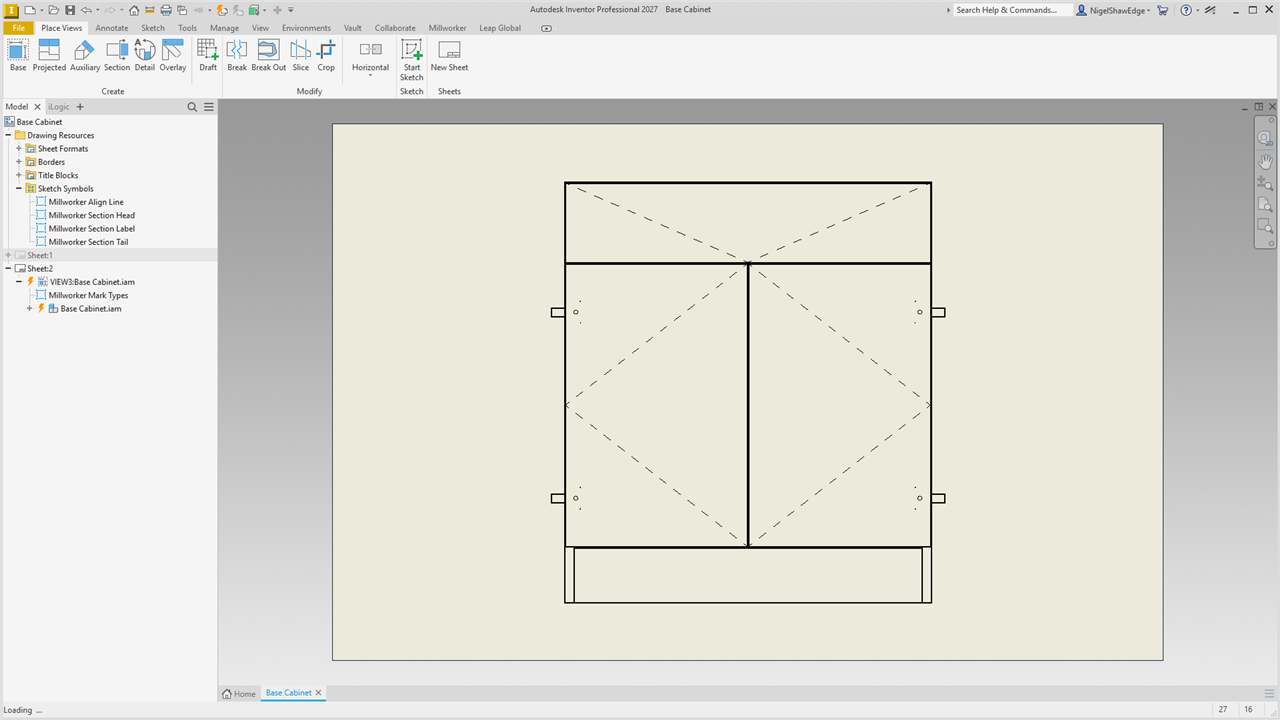
The hinge side is the one the door is marked with (its type's side in Settings, Cabinet marks). A view of the door's back (the face its hinge cups are drilled in toward you) swaps left and right, as you'd see it. When a door's hinge cups are on another side than its mark, it's still drawn as marked, and the status bar names it so you can check the model. Parts seen edge-on in the view are left out.
The lines go in a sketch of the view, so they move with it. They're tagged (attribute set Millworker.MarkTypes) so Clear Mark Types finds them.