
iLogic · Coding · Controls
iLogic: a dynamic drop-down menu
A recent question in the Facebook group asked about an input box with a drop-down menu. iLogic does support drop-downs, but only for multi-value parameters. So if you wanted to list your parts for a user to choose from, you would need to create a parameter and add each object to a multi-value list.
That is doable, but it is not good practice. There is overhead you have to include, like deleting any existing entries first. If only there was a control that could be used… Well, there is now: the NachoInputBox.
It is easy to reference and use, and there is no overhead because it is called on demand. It is free to download and use: email me for the DLL.
Usage
First, add a reference to the DLL. Store it somewhere that is not project-specific, like your iLogic folder.
AddReference "C:\PathToFile\NachoInputBox.dll"
For this example I am going to use a static list, but you can also loop through an assembly or BOM to get the parts or components you need. NachoInputBox takes a List(Of String).
Dim valList As New List(Of String) From {
    "part1.ipt",
    "part2.ipt",
    "part3.ipt"
}
Another way to fill the list is from the assembly's documents:
Dim valList As New List(Of String)
For Each RefDoc As Document In oAsmDoc.AllReferencedDocuments
    valList.Add(RefDoc.DisplayName)
Next
Create a title for the input box. I prefer to create it first as a string.
Dim InputboxTitle As String = "A New title"
Then create the NachoInputBox.
Dim nInputBox As New NachoInputBox.NachoInputBox(valList, InputboxTitle)
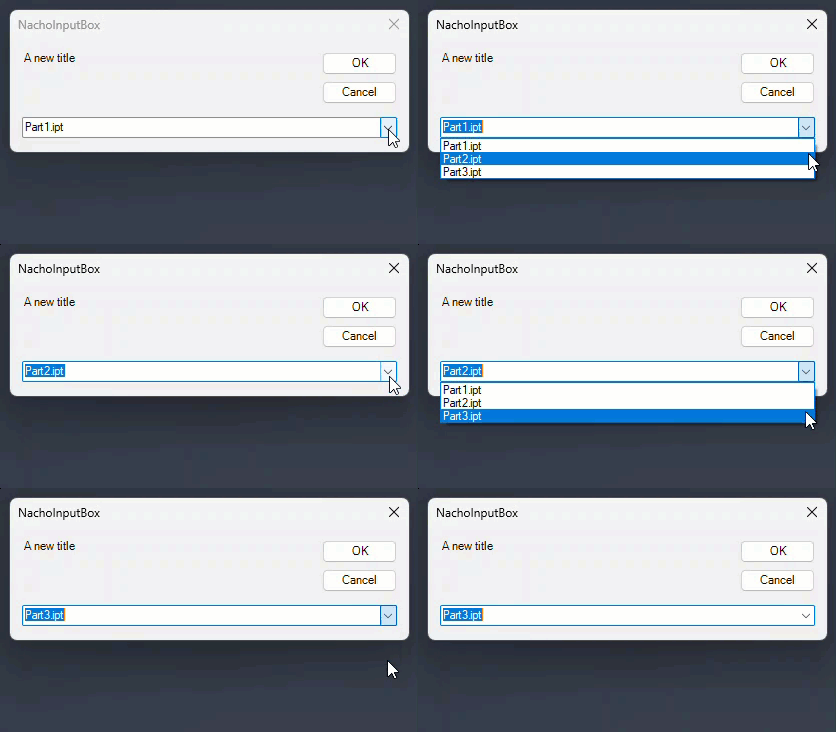
This shows the NachoInputBox with your list in the drop-down. Press Cancel and you cancel the event. Press OK and the selected value is returned to nInputBox; you just need to read the result.
Dim res As String = nInputBox.Result
And that's it! A simple way to get an input box with any values you want.
Questions?
Ask in the Autodesk Inventor group on Facebook, or get in touch. More tools on the Tools page.